Portland Microsoft UC User Group

Join us for an engaging conversation with your peers in the UC space to chat about extending Microsoft Lync Server with AltiGen Unified Communications Solutions.

MaxMobile Smartphone Apps
Extends complete Lync Server 2010 Call Control, real-time presence, instant messaging, visual voicemail and up-to-date corporate directories to popular mobile OS platforms.

MaxACD Contact Center for Lync
A full suite of client applications, Productivity Management tools and built-in call recording & reporting, with superior Contact Center control, usability and flexibility.

Date and time:

09/15/2011
11:30 AM - 02:00 PM
Welcome Time: 11:00 A

Location:

Microsoft Corporation

1414 NW Northrup, Suite 900, Portland OR, 97209 

Register here.

VoIPNorm

Updated: Streaming Video and Audio into Lync

Before I begin, a disclaimer:

This is an unsupported configuration using a third party to plug in a video and audio stream into Lync via the use of video and audio drivers. Use at your own risk.

Back in March I wrote a post around streaming video content with ManyCam into Lync. I continue to get positive feedback around this combination of applications but with one question; how do I get audio to work? I did more searching and experimenting in the last few weeks and there is a solution of sorts but unlike ManyCam this one isn't free.

First lets go back over the issue that requires a special solution for audio. When you playback your video that is meant to be feed into Lync the audio is played over an external audio device. Which is how it should work. The problem is that while playing over the external speaker Lync has no way to capture that audio unless you sit the speaker next to the microphone being used by Lync as its audio device. Alternatively you could build or buy a physical loopback cable to feed the output audio to a microphone input. Sounds complicated, right?

Well there is an alternative. Virtual audio cable software. There are a few to choose from but the one I used in my testing was Virtual Audio Streaming. I don’t know if this is the best or worst software for this purpose but it was  the one I tried that seemed to work.

Below are a few screenshots of the setup.

1. Installed ManyCam with the video source selected.

image

2. Ensure the ManyCam video Driver is selected in Lync.

image

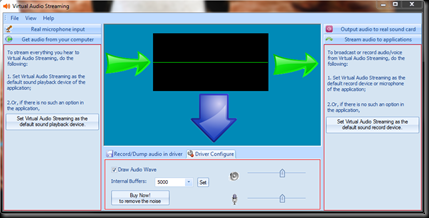
3. Install the virtual audio cable software of your choice and ensure that the default drivers for recording input and playback are the virtual audio cable software.
image

4.Check to ensure the Playback default device is the virtual audio cable driver under sounds in the control panel.

image

5. Check to ensure the recording device is the virtual audio cable driver under sounds in the control panel.

image

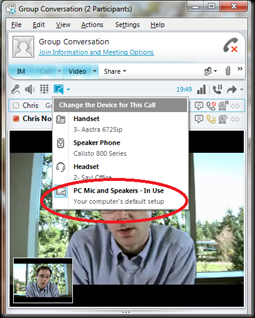
6. Before starting the video in Lync change the device for the Lync call to the computers default device.
image

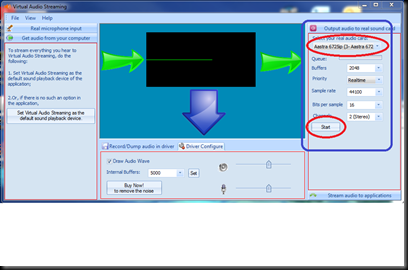
7. Because the audio is being streamed directly into the virtual audio driver no sound will be produced on a local external audio device. To overcome this the software I tried had the option to enable external output so the local user could still hear the audio.
image

Lastly, there are a few caveats with using this combination of software. Here they are:

1. I will say it again, this is an unsupported configuration. Use at your own risk.

2. The virtual audio cable software may fall out of sync with the video displayed. My machine struggled a little during playback with all three applications and it took me a few goes to get it all working properly, so using a PC with a bit of horse power is probably advisable.

3.This isn't free software or at least the product I tried wasn’t. The version I was running was in trial mode and would interrupt the audio stream with a announcement that it was a trial version. Kind of annoying but bearable.

Comments welcomed.

VoIPNorm

A Look at Tabbed Conversations in Lync SDK

A Look at Tabbed Conversations in Lync SDK

The Lync 2010 SDK empowers developers to dock Lync conversation windows inside line of business applications. Danilo Perez Solano, an SDET in Lync Client Test, gives us a primer on how to quickly build an application with docking capabilities. Then he goes into some design considerations for a more robust docking application, Lync 2010 Tabbed Conversations, which he built as part of his end to end docking testing. Tabbed Conversations is a freely available application that combines all conversa...

Blocking File Transfers to Federated Users Using Lync MSPL Scripts

Once again my lack of programming skill has bitten me but luckily for me its not what you know but who you know. Keith from Got UC saved me once again with more scripting brilliance. MSPL scripts are probably one of the least talked about but most useful tools an admin has in Lync.

This is third time I have seen MSPL scripts used to extend functionality in Lync which shows just how flexible they are. Their ability to manipulate SIP messages is where their strength lies. From blocking calls to changing parameters within the SIP header they are really versatile and very useful.

Below is the script text along with a downloadable version underneath the text. The script blocks file transfers to any sipuri outside of the sip domain configured in Lync. So obviously there is a catch here in that it is only intended for a single SIP domain environment in its current format. The script is looking at the to and from header values and retrieving information on the domain from the invite. Some companies might be working with multiple SIP domains and this script could affect traffic that it wasn’t intended to, so use with some caution if that is your environment.

<?xml version="1.0"?>
<r:applicationManifest
r:appUri="http://www.gotuc.net/FileTransferBlock"
xmlns:r="http://schemas.microsoft.com/lcs/2006/05">
    <r:requestFilter methodNames="INVITE" strictRoute="true"/>
    <r:responseFilter reasonCodes="NONE"/>
       <r:scriptOnly/>
  <r:splScript><![CDATA[

/*++
Module Name:
       FileTransferBlock.am
--*/
       if (sipRequest)
       {
              //Check the content type. If the content type is QoE content type, process it; otherwise ignore it.          
              foreach(header in GetHeaderValues(StandardHeader.ContentType))
              {
                     if (IndexOfString(header, "multipart/", true) == 0)
                     {
                           Log("Debug", false, "Found multipart body. Content-Type:", header );
                           i = 0;
                           while(i < MultiPartItem.Count && BindMultiPartBodyItem(i))
                           {            
                                  if(ContainsString(MultiPartItem.ContentType, "application/ms-filetransfer+xml", true))
                                  {     
                                         //toHomeServer = QueryHomeServer(sipRequest.To);
                                         //fromHomeServer = QueryHomeServer(sipRequest.From);
                                         Log("Debugr", false, "***** We have a File Transfer request *****");
                                         //Log("Debugr", false, "***** Request.To home server ", toHomeServer);
                                         //Log("Debugr", false, "***** Request.From home server ", fromHomeServer);

                                         hostName = GetHostName(GetUri(sipRequest.To));
                                         local = ContainsString(FQDN, hostName, true);
                                         Log("Debugr", false, "***** Request.To: ", GetUri(sipRequest.To), " *****");
                                         Log("Debugr", false, "***** Request.To host name: ", hostName, " *****");

                                         if(local)
                                         {
                                                Log("Debugr", false, "***** Request.To is local. Transfer ok *****");
                                         }
                                         else
                                         {
                                                Log("Debugr", false, "***** Request.To is federated. Transfer cancelled *****");
                                                Respond(503, "Service Unavailable");
                                         }
                                   break;
                                  }
                                   i=i+1;
                           }               
                     break;
                     }   
              }
       }

       return;
         
]]></r:splScript>
</r:applicationManifest>

You can also download the script from here.

Again, thanks to Keith for putting the script together.

Update: For information on installing this script check here. This is a really good guide on how to do it. Also this script could be potentially installed on the Edge if desired. Check the guide on how to do that and also TechNet here.

Comments welcomed.

VoIPNorm